Pivotal Tracker overview
Pivotal Tracker is a great agile planning tool for “projects with issues”. But checking the various projects I participate in, just to see what we’re all working on, was a hassle.
Pivotal Tracker is a great agile planning tool for “projects with issues”. But checking the various projects I participate in, just to see what we’re all working on, was a hassle.
Ay caramba, Ubuntu 12.10: Get it right on Amazon!:
Another glimpse at the new Ubuntu, and at what makes it awkward. Mr. Shuttleworth has already declared that all your data belong to him …
“Don’t trust us? Erm, we have root. You do trust us with your data already.”
Silly me, I was thinking I had root over my own computer, and noone else, but apparently I should check the code. And 12.10 includes data-leaking features you need to switch off yourself.
Announing a new publication: “An Information Platform for Business Intelligence in the Aid Sector based on Open Data and Documents; Integrated Access to structured and unstructured data using the document-oriented database CouchDB”, by Michiel Kuijper.
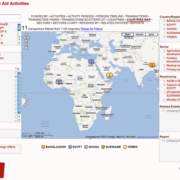
Earlier this year, I was approached by Michiel Kuijper, who was working on his Bachelor degree at the Amsterdam University of Applied Sciences, and was looking for a project to combine Business Intelligence and text mining. Together, we started exploring how to apply this in the development aid sector.
We had some intermittent problems recently with a mail server not being available. As it turns out, I basically was doing a “denial of service” attack on my own mail server, thanks to some caveats in how IMAP, push notifications, and my mobile email client, K9 work together.
One of the mail servers we operate quite regularly became unavailable, apparently not accepting any connections. We managed to investigate the problem as it was happening, and found out all available connections for the IMAP server were in use, and nearly all of them originated from a familiar IP address: my home.
I disconnected the email clients on my devices (laptop, phone, tablet) and switched them on one by one. Clearly, my Android-based phone and tablet with the K9 mail client were causing the problem: they made dozens of connections. It turned out the problem was even worse: K9 reconnects several times.
Normally, an email client connects to the mail server to check if there is new mail in any of the folders, via IMAP. It would be nicer if the server just informs the client if there is a new mail available. The client will know immediately, and doesn’t have to poll the server so often, which reduces the load on the server too.
Such “push notifications” are not part of the original IMAP protocol. There are two ways in which IMAP tries to solve this:
Sadly, the second option is still under development, and clients and servers (such as Cyrus) haven’t really implemented it yet.
And even more sadly: with IDLE, you need an open connection for each folder that needs push notifications. If you only have push notifications enabled on one Inbox folder, that’s not such a big deal, but to have push notifications on a dozen folders or more, you need a dozen or more open connections between server and client.
Apparently, Thunderbird limits itself by default to five open connections to the server, no matter how many folders you have. As far as I found out, you’ll have push notifications on the last five folders you’ve looked at.
But K9 does not limit itself. In my case, with a few accounts on our server, and with “push” enabled on all my preferred (“First class”) folders, that resulted in a few dozen open connections.
To make things even worse, K9 quickly detects when I switch networks, for instance when going from Wifi to 3G, and establishes new connections for those folders over the new network. While the mail server still has the old connections open, waiting for them to time out before closing them.
On a regular day, I start at home, then go to my office, with all my devices.
That adds up pretty quickly: 2 * 20 * 3 = 120 connections. No wonder my colleague had trouble accessing email as soon as I started working.
Suffice to say: I switched off push notifications.
 There still are web hosting providers offering only ftp access to your website files. No fun if you’re used to version control systems and shell access.
I had to deal with that situation, and used Linux’s strength: combining several small tools.
I have a laptop running Ubuntu, a website in WordPress, git for version control, and use Eclipse as my development environment. I first looked at Aptana and other options for Eclipse, but I wanted a more light-weight solution that I could also use outside Eclipse.
Ubuntu comes with lftp, an ftp client that can be scripted and has a “mirror” command to basically get a target location synchronised to a source.
(It actually can do a lot more, and work over http or bittorrent too, but that’s outside the scope of this post.)
Not all files need to be uploaded. Typically, the.gitignore file already has a list of files and directories that are not under version control and wouldn’t go live when using git to update a server.
The lftp mirror command lets you exclude files and directories too, but curiously has no option to read a list of exclusions from a file. Martin Boze wrote how he fixed that, by using sed and tr.
I didn’t want to write a series of lftp commands, but instead would prefer to connect once, then run a series of transfers, inside a single script.
Specifically for WordPress, I also like to have a local mirror of images and documents uploaded on the live site.
It is possible use lftp as the shell to run a script, but unfortunately, it’s not possible to use environment variables or Martin’s “sed” trick in such scripts.
But it’s not to hard to do using the Heredoc syntax.
I use branches in git to separate my development version from a preview and a live version. By adapting the upload script in each branch, I can simply call “deploy” to upload the files to the right place.
#!/bin/bash
lftp <<EOF
user ftp-username ftp-password
open ftp.provider.com

# "mirror" from local copy to server, use .gitignore to excude files (sed, tr), delete remote files if needed
mirror -R -e -v -x \.git.+ -x scripts \`sed 's/^/-X /' .gitignore | tr '\n' ' '\` /var/www/dev_sites/website.org /www

# wordpress-specific
# "mirror" uploaded images on live back to local, don't delete local files if not on remote
mirror -v /www/wp-content/uploads/ /var/www/dev_sites/website.org/wp-content/uploads/
EOF
The only thing left to desire is a way to speed up ftp deployment…

Another “hack post”, to capture how I got mobile broadband working on my Sony laptop. Sony makes laptops with cutting-edge features (small, solid-state disk, full HD screen) and a stylish look, but doesn’t like to help you take full advantage of it unless you’re on Windows. Undocumented tweaks to the hardware, hard-to-find technical information, and so on.
I bought a Sony VPCZ1 (to be more precise: VPCZ13C5E) with a WWAN module installed, with the idea that I could be online anywhere, without any dongles sticking out, or having to connect by tethering it to my phone over Bluetooth or USB. I’ll pay the extra fee… provided it works.
I have installed Ubuntu 10.10 (which was an effort in itself), and went on an excursion to get mobile broadband running.
First, let’s find out what the hardware is: it’s not listed on Sony’s specs page, but according to the specs of a similar model, it’s a Qualcomm Gobi 2000 (PDF link). It apparently needs to be loaded with a firmware before it will operate. I had to install the Ubuntu package gobi-loader as a starting point.
However, that package does not provide the actual firmware. It expects the firmware in /lib/firmware/gobi, but that directory doesn’t even exist.
The discussion about a Qualcomm problem on Launchpad made me look at a way to get the firmware from the Microsoft-based Qualcomm Gobi2000 (WWAN) Driver 1.1.80 that Sony provides. After unzipping that file, we have a directory with a file GobiInstaller.msi… the firmware is somewhere in there.
After installing either p7zip-full or cabextract, we can extract the contents of the.msi file, to end up with a long list of crypticly named files.
Thanks to a post by Madox, and the discussion after it, I saw what to look for:
/lib/firmware/gobi$ ls -l
total 13888
-rwxr-xr-x 1 root root 11096116 2009-12-11 21:10 amss.mbn
-rwxr-xr-x 1 root root 3104812 2009-12-11 21:10 apps.mbn
-rwxr-xr-x 1 root root 9284 2009-12-11 21:10 UQCN.mbn
As it happens, there is just one file with length 11096116, just one with length 3104812, and 18 with length 9284 bytes. The first two are easy, the UQCN.mbn file contains the specific setup for a region or provider.
When using a hex editor (like hte in the package ht) to inspect the various variants of 9284 byte files, there is a string at the end revealing a bit what it is intended for: umts_gen, umts_orange_nogps, umts_tmo_noxtra and so on. See below for a table of strings, file names, and md5 checksums in my setup.

After copying the appropriate three files with the right name into /lib/firmware/gobi, I flipped the “wireless” switch off, waited some 10 seconds, and switched on again. And was greeted with a pop-up to enter the PIN code for my SIM card: indicating that the modem had been detected, the firmware had been loaded, and my SIM card was working.
Under the Networking menu, I could add a new mobile broadband network, and connect after a few simple steps of selecting my country and provider.
Notes: various posts for earlier versions of Ubuntu mention hacking in qcserial, or compiling your own kernel modules. I didn’t have to do any of that.
| string | file name in.msi | md5sum |
|---|---|---|
| umts_gen | _61F1C9E9670341009A49DFBF7ED9308B | e601a7bf3c55104badcdf21bcbb0bfa9 |
| umts_gen_nogps | _82F1F7B633254DD8943C3C66695180D4 | 633bed88c29244683635c261849d0e88 |
| umts_gen_noxtra | _B1755EF712704F6EA05AD29399FDAAD2 | f1911bcefc4bd5bf8d8fd401082c1a5a |
| umts_orange | _D086B5600A824F88A7B5B4DA9AEC7393 | 0044ef086b828c30689b899a3570dd56 |
| umts_orange_nogps | _EAA5B766B8FC42258CF0903EB29B3866 | 1dbb1ce26cb59f9d7b551e54c9f71c80 |
| umts_orange_noxtra | _97CDF82428924F739C17CEC7DB7642C5 | 668d1e8903f362b4fc5ec66145ab9b36 |
| umts_telital | _FF884A864DC04D3B9BE3B80CA0D6365D | 6f575f681ffad81bf3159c7b2d7122a9 |
| umts_telital_nogps | _F5A8481D6D0141DDB5AC04E02C5D6B77 | bf6b02a2e4ac42c40b028519ed5db487 |
| umts_telital_noxtra | _CE104EC699FA4012AF9BF053838EFEEA | 6a1b2b342a9e3548dc02f882f156ec21 |
| umts_tellfon | _F85609A0A9B64C399F670AE6D78A9EDD | b0edb9f5ee92204f9d0e455ff860ca84 |
| umts_tellfon_nogps | _AB685C9BC9BF406691ED3CC70C0EA2F8 | 345c4671242f94d31e3161ead89227db |
| umts_tellfon_noxtra | _D9B76BE055B04137AB32632049501DF1 | f064a0c0c7806d30dacd33b4672661cc |
| umts_tmo | _FC981235AEDB429BA1F601941B97E11C | 1061d15ca89d0d8f66919c99cb67cc45 |
| umts_tmo_nogps | _A6C51028090341929FAC167B2938F19C | 6d7b94fed93f47ceafc9ba0c7889fc1f |
| umts_tmo_noxtra | _9358B6316845471886EF8B592B400046 | 4132ebbea25e4014043d902d7e272f71 |
| umts_vod | _A51C11D307D344229DD775AD527BA6DA | 4d1b58cb79817dbe111194dfc286e57a |
| umts_vod_nogps | _890ED25310C543B483CA0E67C40B9C54 | d06886a62c5c42e2076e0d2a055d1675 |
| umts_vod_noxtra | _A66130F57F1E4EFCAA571D5BFBF84CE4 | 39f0b2663f682b5c9d97cdaddaa72813 |
Working with open source is fun because it lets me explore software and change little things. If you’re not really into code and config files, you might want to skip this post 🙂
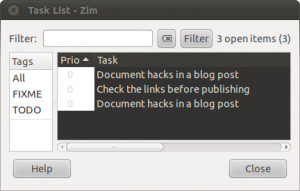
Zim task list (default)
Since some time I use Zim, a desktop wiki, to take notes in meetings and at conferences. It shares a few good things with Tomboy, the default notebook on Ubuntu (linking pages, immediately saving what you type so you don’t loose anything on sudden power loss) but has a few things I prefer:
The Task List itself is a separate window you can pull up, to see all open to do’s. But I wanted to fix a few things to make it more powerful in daily use.
The suggestions below are based on Ubuntu 10.10, and with Zim 0.49 installed as Ubuntu package.
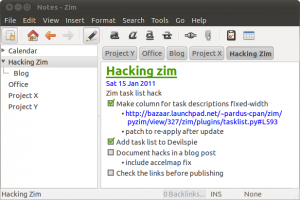
Zim notes with tasks
The first step is to have Zim available at my finger tips, so that taking notes is instant. I want to use the key combination Win-Z to bring up the notebook. You need the wmctrl package to be able to raise the window if it already is open but buried under other windows.
Next, I went to the menu System > Preferences > Keyboard Shortcuts and added a custom shortcut. It starts Zim to make sure it is running (make sure your notebook is set as the default notebook to open in Zim’s preferences), then raises the window to the top:

Zim custom shortcut
I’d like to have the task list available via a keyboard shortcut. I prefer the combination Ctrl-T, which already is assigned to Format > Verbatim (monospaced). So I edited ~/.config/zim/accelmap and uncommented the relevant lines to show the task list and to apply that formatting, to assign the key combination to the task list.
(gtk_accel_path "<Actions>/TaskListPlugin/show_task_list" "<Control>t")

(gtk_accel_path "<Actions>/PageView/apply_format_code" "")
Bonus key combination: (while we’re here anyway). I have enabled the Inline Evaluator plugin in Zim, so that I can do quick math within my notebook. If I type 1500*1.19 and select the menu item Tools > Evaluate Math, Zim calculates the outcome and changes the line to: 1500*1.19= 1785.0. To make that easier, I’ll assign Ctrl-= to that function:
The column with task descriptions is made wide enough to contain complete task descriptions. Which means that you usually need to scroll to see the other columns.
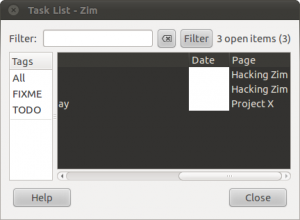
With many pages, seeing in which page a task resides helps a lot to understand its context. The descriptions should be limited to a more narrow column.

Task list more optimal
Diving into the source code, I found out that the developers already thought about that as well. They implemented a fixed-width column for the Maemo platform, with the remark
That made it really easy to change my own copy of Zim to do just that. It results in a simple patch:
--- tasklist.py.or 2011-01-15 16:36:42.624406264 +0100
+++ tasklist.py 2011-01-15 16:12:01.555792557 +0100
@@ -564,6 +564,8 @@
             column.set_sort_column_id(i)
             if i == self.TASK_COL:
                 column.set_expand(True)
+                column.set_sizing(gtk.TREE_VIEW_COLUMN_FIXED)
+                column.set_fixed_width(500)
                 if ui_environment['platform'] == 'maemo':
                     column.set_sizing(gtk.TREE_VIEW_COLUMN_FIXED)
                     column.set_fixed_width(250)
It’s a good idea to keep the patch around: upgrading to a newer version of Zim would remove the hack, so I just made a script to re-apply the patch:
#!/bin/bash
# Apply patch to Zim tasklist plugin to set fixed-width task description column
# Best performed with sudo
cd /usr/share/pyshared/zim/plugins
patch < /home/rolf/bin/fix-zim-tasklist.patch
cd -
The Task List window often pops up over the notebook itself, and stays on top. Clicking on a task brings up the note in which the task resides, and focuses it on that task. But that’s not so useful if the note is hidden under the task window.
I already use Devil’s Pie, self-described as “A totally crack-ridden program for freaks and weirdos who want precise control over what windows do when they appear.” Install gdevilspie if you like a GUI to set up rules for windows.
I have plenty of screen (1920×1080) so I decided to let the notes and the task list live next to each other, with these two rules in ~/.devilspie/zim.ds
( if ( begin ( is ( window_name ) "Notes - Zim" )) ( begin ( geometry "926x1032+0+24" )))
( if ( begin ( is ( window_name ) "Task List - Zim" )) ( begin ( geometry "990x1032+930+24" )))

Zim notes and tasks side by side
My laptop has become a better notebook! At any moment, Win-Z brings up my notes, to quickly jot down something, and when in my notebook, Ctrl-T brings up the task list to let me easily navigate the to do’s and follow-ups in my notes. Staying on top of things has become a little bit easier.
I’ve been using Mylyn for quite some years now. Mylyn introduced the concept of task-focused work: activate a task in your to-do list, and only see the files relevant to that task. Tasktop, the company behind Mylyn, extends Mylyn as Tasktop, with even more features, and promises “improved productivity, guaranteed.”. It works great when I am developing software, and also could support me as knowledge worker, for instance by managing bookmarks and browser tabs in Firefox. But I’d like to see it offer more support for task management within Firefox too. A bit like this.
If you’re a developer, you probably at least had a look at Eclipse at some point. And perhaps at the Mylyn extension, to connect it to various bug trackers to populate your to-do list. It provides a standardised way of keeping track of issues in bug trackers, and helps to focus on the files relevant to a specific task. Switching from one task to another becomes lots easier, and so the cognitive overhead of managing tasks (especially finding the files associated with a task) is reduced significantly. As Mik Kersten, one of Mylyn’s masterminds, demonstrated in his PhD 1.
Mik founded Tasktop, a company that takes the “task-focused desktop” approach even further, connecting Mylyn also to email (Outlook, Gmail, IMAP) and to the Firefox web browser.
And Mylyn and Tasktop have a lot more features, many of which I am not – or perhaps: not yet – using.
These days, I hardly get to spend time on programming, but instead spend most of my time as knowledge worker. Firefox is now my predominant “desktop”, and I find myself flipping back and forth between Eclipse and Firefox quite a bit.
The people at Tasktop have been very responsive to feedback, and thereby also encouraged me to make regular contributions to their issue tracker, mostly with suggestions for improvements or new features. So I filed a suggestion to expose more of Mylyn and Tasktop in a Firefox extension.
I recently decided to try out Wireframesketcher, another Eclipse plugin, developed by Petru Severin, to sketch a bit how I think an extended TaskTop addon for Firefox might help me better.
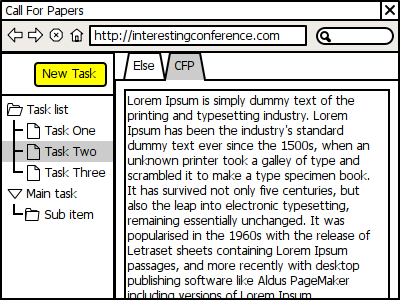
Step 1: See an interesting page
I somehow end up on a page in my browser for a conference, event, or topic I am interested in. For instance via email, a chat, a twitter message, a phone call, a visitor in my office. I want to quickly make a new task to capture what I’m looking at.
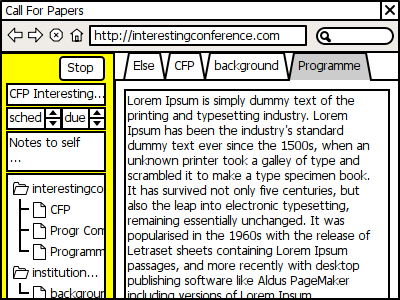
Step 2: Collect information
Once I created the task or activated it, I want to perhaps add a few pages to the task context, and perhaps some notes or a copy of some text on a page. And maybe schedule it or add a due date, for instance a deadline for registration, or for submitting a proposal or a paper.
Ideally, the task context could also add downloaded files to the context.
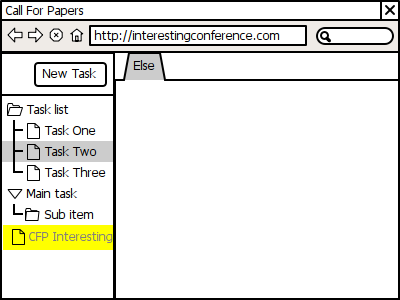
Step 3: Back to previously active task
And then I want to go back to the task I was working on, or another one on my schedule.
In summary, my wishes:
1 Mik Kersten, “Focusing knowledge work with task context” (Vancouver, BC, Canada: University of British Columbia, 2007), http://www.tasktop.com/docs/publications/2007-01-mik-thesis.pdf.
When I update my laptop to the next version of Ubuntu (Lucid Lynx or 10.04 this time), I usually have a look at the general direction for some of the “ desktop core elements”, like desktop search. I decided to switch from Beagle to Tracker and hopefully have tackled the performance problems it seems to come with.
The Ubuntu community has been shipping Tracker desktop search for some time already. It seemed to often freeze up my computer completely while it was indexing files. Beagle, the best alternative, did not, and also seemed to have a better feature set. For instance, it indexed my chat logs in Pidgin nicely.
But Beagle doesn’t seem to be developed very actively, whereas Tracker, as part of the Gnome desktop, seems to be going actively towards supporting the Nepomuk semantic desktop. Which then paves the way to let other applications use Tracker to retrieve information. And store information!
Adding tags or a description to a photo in one application will make it available to other applications as well. Instead of letting each photo application build their own application-specific database.
All these applications also periodically want to go through my files and directories to see if there is new content that they can handle. It just adds to potential performance problems. But switching back to Tracker also meant switching back to its performance problems. As soon as some sort of disk-intensive activity started, my whole system froze.
But Ralf Nieuwenhuijsen gave an explanation about the background of the problem in the Ubuntu brainstorm.
“Currently, what happens is that linux saves a last-read-timestamp on every file. So when tracker indexes it, it also has to write it. Hence the trashing. This has become worse over time. Although most of you associate this with tracker, all file-io with lots of small files is horrible at the moment in linux. Nothing tracker-specific about it.”
That lead me to explore this “last read timestamp” a bit more: do I need it anyway? Apparently not: a pointer to discussions in the Linux community suggest that it might be switched off by default in the future, and let me to an article by Kushal Koolwal explaining the different options atime, noatime and relatime.
So I edited /etc/fstab, replaced relatime by notime, and remounted the disk. And started Tracker again. Had Rhythmbox running. Asked Eclipse to compare a project in CVS with its repository. All tasks that read (sometimes a lot of) files on disk. Without any hickups so far.
Lets hope the search results that Tracker delivers are useful too, in practice 🙂
I’m a geek. So when it’s not a writer’s block keeping me from producing a blog post, I’ll dive into tools and techniques to “optimise” my writing experience before I start typing out sentences. Lets call it preventive productivity: getting a lot of related things done in order to be more efficient later. Like getting the tools and the work flow right. Perhaps I managed that, now that I can really use OpenOffice to write blog posts, with Zotero to manage my reference, and the Sun Weblog Publisher to push the result towards my website.
I don’t really have a lack of stuff to write about (yet). But so far, I never was happy with how the writing went, as a process, as a work flow.
Adding it all up, I usually end up spending 2 to 3 hours to get a blog post done, and around half of that is on the technical stuff.
That creates an additional problem: I don’t always spend those hours in one session. I want to be able to stop now, and continue later.
I’ve looked at specific tools, like HTML editors that would let me focus on writing instead of coding. ScribeFire offers a few nice features in publishing a blog post from within Firefox, but offers no simple way for simple mark-up like <H1>. KompoZer (follow-up to Nvu) is nice for building complete HTML, but yet another tool and not really focused on writing.
The most obvious choice to write texts is to use something like OpenOffice, especially when using Zotero to easily add bibliographical references. It has the best tools for spell-checking, the simplest ways to add links to sites, and so on.
But in its basic form, it doesn’t do a great job in producing HTML. “Save as” produces better HTML than “Export as”, but then you loose the special fields that allow you to later change references etc. And I’d still have to copy-and-paste the proper part of an HTML file into a new blog post.
As part of today’s preventive productivity, I found the Sun Weblog Publisher extension for OpenOffice. Which adds a nice button to publish a document to a blog, using a variety of protocols. And also to download existing posts from that blog to edit.
It still produces problematic HTML, but at least my writing experience is improving a lot: quickly adding links, inserting references and footnotes, and so on.
In addition, having my preliminary blog posts in OpenOffice files makes it easier to use Tasktop, which promises better productivity by making task switching a lot easier. Their Firefox add-on tracks the sites I visit while working on a specific task.
Whenever I have an idea for a blog post, I add it as a task in Tasktop. That enables me to do a bit of planning for it, and also to activate it whenever I am looking for information to include. If I can’t finish it all in one session, I just stop the task, and when I reactivate it later, my browser tabs and the file I was editing are back in focus.
OpenOffice allows me to focus on writing texts while adding both links to sites and bibliographical references, and checking spelling and basic layout of headers, tables, and so on. I still need to decide whether a good template will help improve this step.
The Weblog Publisher extension lets me push my text to my website as a draft post, repeatedly if needed. I then need to do the last part of publishing on my website: adding appropriate tags, cleaning up HTML, and perhaps adding one or more images.
This is the first post I did this way. No references in this one, but adding the links was definitely lots easier. And the publishing part now only took 15 minutes (cleaning up some of the superfluous HTML, mostly). It definitely feels a lot smoother.