Open display settings
My laptop keyboard has this key to setup how multiple displays are handled:
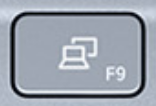
However, by default, this does rudimentary switching between "joined", "mirrored", or single displays (either the external monitor or the laptop screen). And it usually messes up my display setup completely.
Instead, I want it to open the Gnome Display Settings, so that I still can choose between "joined" or "mirrored", but also set the relative positions of monitors (relevant when "joining" monitors).
Steps
Disable the current handling of the key.
The key is handled by mutter. The default settings is [<Super>p', 'XF86Display'].
To disable this:
The XF86Display key press is still translated by mutter into <Super>p.
Set up opening the display settings screen.
Add a custom keyboard shortcut in Gnome.
- Open Gnome Settings
- Go to "Keyboard" and select "View and Customize Shortcuts".
- Scroll down and select "Custom Shortcuts".
- Add a shortcut:
- The Name can be anything, for instance "Display settings"
- The Command is
gnome-control-center display. - Select "Set Shortcut..." and press the display key. It should appear as
<Super>+P.
Done
Now, when pressing the key, the display settings panel should open when pressing the displays key (F9).